



YouTube Remix: How to Use It
A while ago, the option to remix online from the YouTube app was unveiled by the streaming giant. The feature can be an easy and accessible way to produce new content and help keep a steady flow of uploads to make your channel shine. Let’s go over the basics and what advantages it might bring.
How to Remix a YouTube Video
So, where is the remix button on YouTube? You can find it on the video player for each individual video next to the share button:
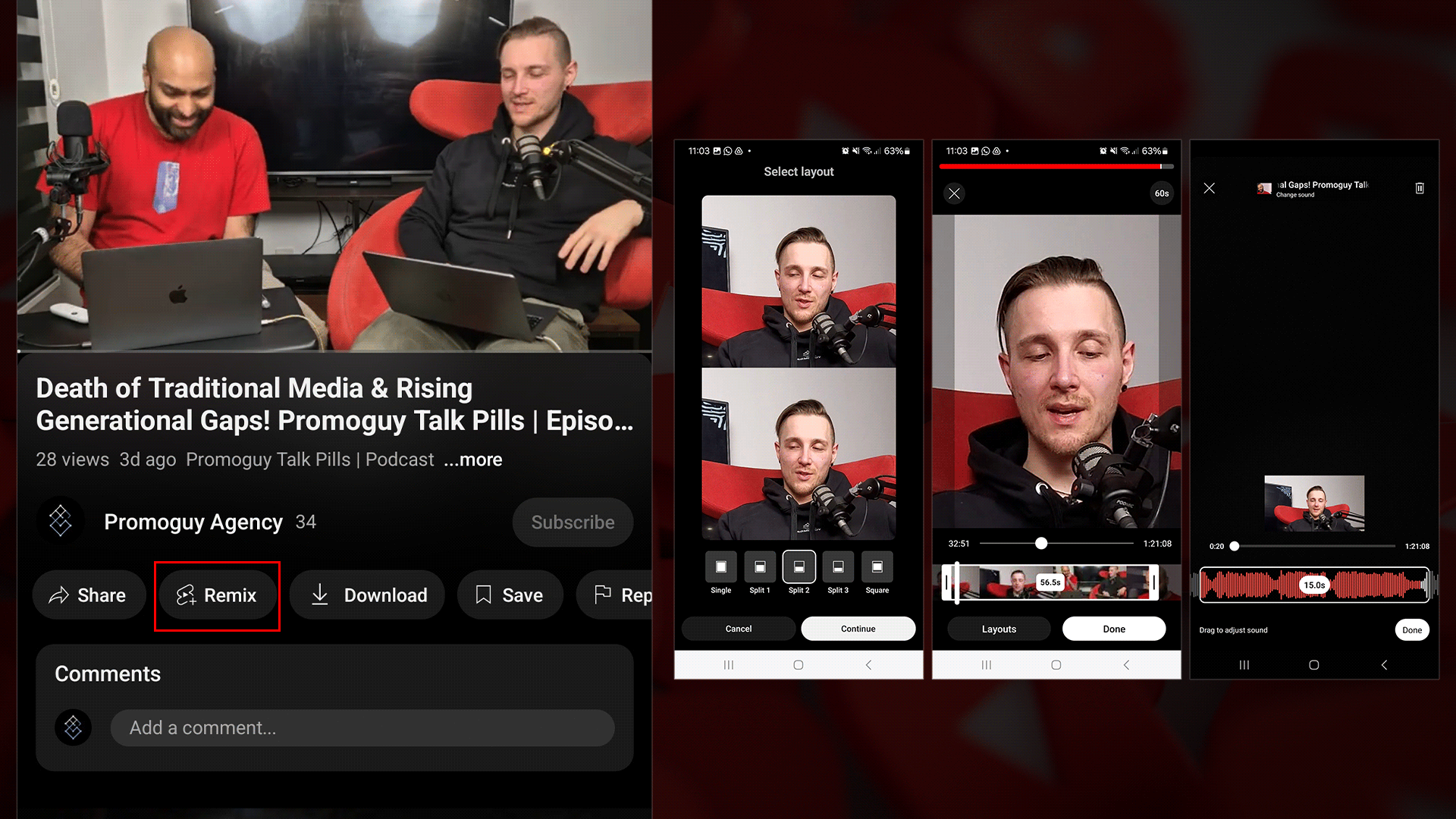
To remix YoutTbe videos, you simply click the button and select the area of the video you want to republish as a shorter one. This allows for a quicker means of quickly editing and publishing people. YouTubers implement the video with the original audio, collaborate with the original creator, post a response, or snip a particular scene as their riff on the video.
There are different ways to access remixing depending on the type of YouTube content. To remix from another Short:
- Log in to the YouTube app.
- Find the Short you want to sample and open it.
- Down in the lower-right corner, you can tap Sound to find other Shorts that have previously used the same audio and effect.
- You can then press the options to Create a Short.
From a video watch page. To remix from a long-form video:
- Much like the previous version, you need to sign in to the YouTube app.
- Next, you should go to the video you want to sample.
- You can find options under the video player where you can tap Remix and then Sound.
- From an Official Artist Channel
To remix from an Official Artist Channel:
- Open the Official Artist Channel.
- Go to the “Popular sounds on Shorts” section.
- Next to the song you’d like to sample or remix, you can see the options.
- You can also tap on a sound to view other videos featuring the song, or tap to save the sound to your library.
Remix Options
There are 4 specific options that come with the remix feature: Sound, Collab, Green Screen, and Cut.
- Sound: You can utilise the sound in a video for your own Short by selecting this option. This can allow for dancing, lip-synching, or doing anything else you want.
- Collab: This option combines the music video and creates a split-screen Short. You can alter the size and position of the video or change the layout using several templates.
- Green Screen: Allows you to make one video the background of your new video.
- Cut: Make a five-second cut from a video and add it to your Short. The original video can be played repeatedly or snipped together with other videos.
While you can upload and download Youtube shorts, this is a quicker way to make short-form content. The video will already conform to the YouTube shorts dimensions on its own, making formating far easier.
How to Enable Remix on Youtube
The remix in YouTube option is automatically available to users with a profile. If you have a video already published, the website will allow for remixing YouTube content into shorts. Most videos allow for this procedure automatically.
If the remix option is not showing on your YouTube options, you might need to update your app. Some users have also reported that it sometimes does not show up on particular videos or new videos. Unless the option is disabled, this may be a glitch on YouTube’s part.
Speaking of which, you should also know how to disable remix on YouTube shorts so people don’t use your content or if you want to learn to enable it again. To do this, you can:
- Access YouTube Studio and sign in to the account tied to your channel.
- Open the sidebar and click on Content. Next, go to Shorts.
- You can select a video or all the Content.
- Check the YouTube shorts section and disable Remix.
- You can got to Edit and then disable Shorts remixing.
- Next, you can click the don’t allow remixing option and
- Finally, click on Update videos and you will have disabled all the videos.
Now, you should be ready to go out there and make the most of your YouTube features.
However, if you’re looking for content marketing or help with promoting your stuff, why not check out some of our services? We provide everything from production to analytics, allowing you to sit back and see the engagement roll in. Check the sidebar or our services page to find out what we can do for you.